




Seated dinners
A small code on each table card gets scanned between courses, when phones are already out. Photos from every table reach the same screen, including the quiet corner far from the dance floor.
Print a single QR code, or put it on a slide. Guests point their camera at it, pick photos from their camera roll, and each upload joins your event screen and gallery. No app to install, no sign-up, nothing to explain twice.
Press Add photos on the phone, or drop a photo on the wall. It stays on your device and is never uploaded.
Mia & Leo
12 October 2026
Live · 127 photos

heygrats
01The idea in plain terms
A QR code photo wall has two parts. The QR code is your event's guest link, printed as a square any phone camera can read. The wall is a display page you open on a TV, projector or laptop. When a guest scans the code and uploads a picture, the wall picks it up and shows it to the room.
The code does the hard part: it gets people from 'that's a nice photo' to 'it's on the screen' without an app store, a login or a shared-album invite. That short path is the reason a QR code tends to beat a hashtag or a folder link. Planning a wedding? Wedding photo sharing covers the same setup for the big day.
02How it works
What you set up before the event, and what a guest sees after pointing a camera at the code.
01
Name your event and HeyGrats generates its guest link and QR code. Download the code as an SVG, which stays sharp at any print size, or paste it into a slide.
02
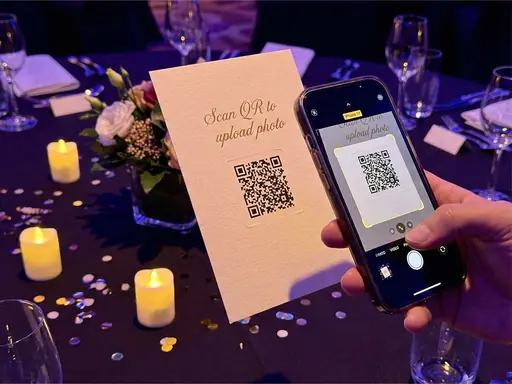
The camera opens your event page in the browser. Guests take a photo on the spot or pick several from their camera roll, then send them in one go.
03
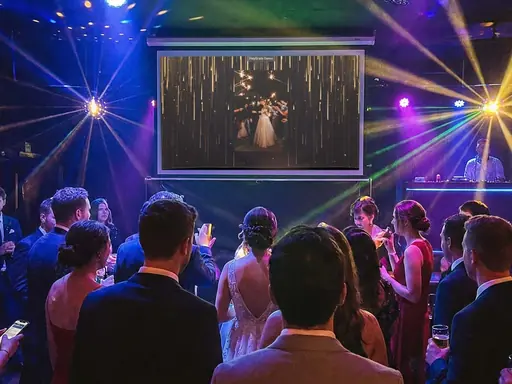
Leave the display link open on the venue screen. New uploads jump to the front of the rotation, and a small QR code in the corner invites the next person in.
03Use cases
Anywhere guests can see a printed code or a screen. Four setups that make the most of it.
A small code on each table card gets scanned between courses, when phones are already out. Photos from every table reach the same screen, including the quiet corner far from the dance floor.
Put the code on a holding slide before things start and again at the break. The audience scans from their seats instead of hunting for a sign on the way out.
A sign at the door with the code and one line of instruction catches guests as they arrive. Turn on the digital guest book and the same scan lets them leave a written note too.
No TV at the venue? The same code still sends every photo into one event gallery you can share afterwards, and the wall is ready whenever you do have a screen.
04Features
The code is the front door. This is what sits behind it.
Use the same QR code on table cards, posters, slides and invitations. Every scan lands in the same event, so there is nothing to keep in sync.
The code opens a web page, so guests on iPhone and Android upload from the browser they already have, HEIC photos included.
The live display shows your QR code in a corner, and a large one before the first photo arrives, so people watching the screen can join straight away.
Every QR code has a matching event link for invitations, emails and group chats. Paid plans let you choose a custom link.
Turn on Message Cards and the same page lets guests write a short wish on a card, which plays on the wall between photos.
Paid plans add moderation, so each upload can wait for your approval before it reaches the screen.
05QR code placement
A QR code only works if guests see it while their phone is already in their hand. These rules of thumb come from how phone cameras read codes.
A common rule is that a code scans from up to about ten times its own width. A 3 cm (just over an inch) code on a table card works at arm's length; a poster read from across the room needs something nearer 20 cm (8 inches).
Scanners need a clear margin around the code. Keep a white border about four of the code's small squares wide, and don't crop the code tight against a busy or coloured background.
A bare code gets ignored. Add one line such as "Scan to put your photos on the big screen" so guests know what happens before they scan.
Welcome sign, dinner tables, the bar, the dessert table and the dance-floor entrance. Several small codes do more than one big sign in a corner.
If you want a custom event link, set it before anything goes to print: changing the link retires the old one, including codes already printed. Custom links come with the paid plans on the pricing page.
Scan the printed code once under the real lighting. Matte paper avoids glare from spotlights, and a dark code on a light background reads most reliably.
06Keep reading
No. The built-in camera on current iPhones and most Android phones reads QR codes and opens the link in the browser. For anyone who can't scan, share the event link instead.
Your event's guest page, where people take a photo or choose some from their camera roll. It is the same page as your event link, so share whichever suits the moment.
Yes. Download the code as an SVG from your event dashboard and place it on your own signs, table cards, programmes or slides. The dashboard also links to ready-made Canva poster templates.
Not unless you change the event link. A custom link replaces the old one and codes printed before the change stop working, so set it first. Uploads close when the event reaches the end of its plan's access period.
Yes. Print it as many times as you like. Every scan goes to the same event, whichever table, sign or slide it came from.
Photos. The page accepts the image formats phones use, including iPhone HEIC, and guests can send several at once. With Message Cards turned on, they can also leave a short written note.
Your event, tonight
Create your event, print the QR code, and let photos from every table find their way to the screen.